
Fingerprint security on Windows devices promises both convenience and speed, but in practice, it’s a bit unpredictable. The JIANBOLAND USB Fingerprint Reader is pitched as a straightforward plug-and-play fix, especially for anyone tired of typing passwords on Windows 10 or 11. Some folks have said setup is instant with Windows Hello; others have had to wrestle with drivers right out of the box.
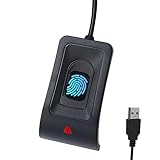
- Instant Windows Hello Integration: Seamlessly access your Windows 10/11 PC with Microsoft-certified biometric authentication. Replace cumbersome passwords with one-touch fingerprint login through the native Windows Hello framework—no third-party software required.
- Microsoft-Certified Security: Officially supports Windows Biometric Framework and Windows Hello. 0.001% False Acceptance Rate and 0.1% False Rejection Rate—bank-grade security for your desktop.
- Plug & Play – No Drivers Needed: Zero driver installation for genuine Windows systems—automatic recognition upon connection (95%+ compatibility). For custom Windows builds, a free driver update is available via the included quick-start guide.

When it works, recognition is fast, and storing multiple fingerprints is a nice touch for families or shared PCs. That said, there are reports of the device just giving up after a while, or Windows suddenly refusing to recognize it. Build quality? It’s lightweight and plastic-heavy—so if you’re after something that feels premium, you’ll probably be disappointed.
Bottom Line
If you’re after a no-fuss Windows fingerprint reader that won’t break the bank, the JIANBOLAND is worth a look—especially if you value plug-and-play over bells and whistles. Check it out here if you’re curious or want to grab one.
Overview: JIANBOLAND USB Fingerprint Reader
The JIANBOLAND Fingerprint Reader is mostly about ditching passwords and letting Windows Hello handle your logins. It’s USB-based and comes with a 5-foot extension cable, which is actually pretty handy if your PC’s tucked away.
Plenty of people say setup is a breeze on Windows 10 and 11, with Windows Hello picking it up without fuss. Still, driver hiccups aren’t unheard of, especially on oddball systems.
Pros:
- Quick, touch-based fingerprint login
- Handles multiple users
- Simple, no-nonsense hardware
Cons:
- Long-term reliability is questionable
- Not always plug-and-play for everyone
- Strictly Windows—forget Mac or Linux
It’s basic, but it does the job. There’s a mix of glowing and grumbling feedback out there, so it’s not a slam dunk.
Seamless Windows Hello Integration
Getting fingerprint login working on Windows 10 or 11 is usually painless. Most users plug it in and Windows Hello just… works. No extra software needed. Occasionally, the driver doesn’t kick in and you’ll have to nudge Windows with a manual update.
When it’s humming along, registration and authentication are quick—just a tap and you’re in. That said, some folks have run into spotty recognition or the thing just stops responding after a few months. Compatibility is mostly good, but if you’re running a non-standard Windows install, expect some fiddling.
Microsoft Certified Security Standards
Security-wise, this reader ticks the right boxes. It’s built for Windows Hello and works with the Windows Biometric Framework, so you’re not stuck with sketchy third-party software.
A few buyers ran into issues with older hardware or Windows not grabbing the right driver, but once it’s set up, it uses Microsoft’s own biometric system. That’s a relief for anyone worried about privacy.
Pros:
- Uses Microsoft’s built-in biometric system
- No extra security apps to mess with
Potential Issue:
- Driver hiccups do pop up on some machines
It’s a solid fit with Windows security, but setup isn’t always as seamless as you’d hope.
Plug & Play Setup Experience
For most people, it’s plug it in, and you’re off to the races. Windows 10 and 11 usually spot the JIANBOLAND fingerprint reader right away, so you can get started with Windows Hello in minutes.
But, not everyone gets that smooth ride. A handful of users found the driver wouldn’t install, especially on non-genuine Windows systems, so they had to dig around for a manual update. The 5ft USB extension cable is a nice touch if your desk setup is awkward.
Pros:
- Usually works instantly on legit Windows PCs
- No extra apps needed
- Fingerprint registration is straightforward
Cons:
- Driver issues do crop up
- Not so friendly with non-standard setups
Multi-User Accessibility
If you’ve got a shared computer at home or at work, the reader’s multi-user support is actually useful. It can remember up to ten fingerprints, so several people can have their own logins.
Most users say adding fingerprints through Windows Hello is pretty easy. If you’re trying to save a bunch of fingers for each person, you might run into limits, but for typical use, it’s fine. Occasionally, people mention setup or recognition headaches, but for most, this feature just works.
Professional and Ergonomic Design
The included 5-foot braided USB extension cable is a smart move—it lets you place the sensor wherever it’s most convenient. The aluminum-alloy housing gives it a bit more durability, but it’s still a pretty unassuming little gadget.
Some folks like the plug-and-play design, though if your desk is cramped, managing the cable can be a minor hassle. The compact size means it won’t hog space, which is always a plus.
The flexibility for placement is a highlight, but if your workspace is already a cable jungle, you’ll need to figure out the best spot.
Everyday Use Scenarios
Logging into your Windows PC is a breeze with this reader—no more password typing every morning. Most people have no trouble with setup, but there are scattered reports of driver weirdness or the device dropping off unexpectedly. Being able to store several fingerprints is handy for families or shared workstations.
The long extension cable helps you put it wherever you like. Some users say it’s been flawless for months; others, not so much—it either stops working or gets flaky. Reliability is a bit of a gamble, but the convenience and multi-user support are what make it appealing.
Pros and Cons
If you’re shopping for convenience and dependability, this reader lands somewhere in the middle. Here’s a quick rundown:
Pros
-
Smooth Windows Hello Integration:
Works right out of the box with Windows Hello—no extra software needed (assuming your Windows is legit). -
Stores Multiple Fingerprints:
Up to ten fingerprints, which is great for shared computers. -
Quick Authentication:
Most users say it’s fast—often under a second. -
Generous Extension Cable:
The 5ft cable makes placement easy. -
Compact Design:
Small and easy to tuck away, whether you’re keeping it out or just using it temporarily.
Cons
-
Driver Installation Issues:
Not everyone gets automatic driver setup, especially on fresh or non-genuine Windows installs. -
Questionable Long-Term Reliability:
Some folks have had it quit after a few months. -
Plastic Feel:
The build is nothing fancy—some say it feels cheap despite the aluminum sensor. -
Connection Woes:
A few people have had Windows stop recognizing the device after restarts or long use. -
Setup Can Be Tricky:
While it’s easy for many, others find the process a bit clunky or unintuitive, especially if they’re not super tech-savvy.
In short, the JIANBOLAND fingerprint reader nails easy login and multi-user access, but you might have to tinker to keep it working smoothly.
Customer Reviews
User feedback is all over the place. Lots of people found setup easy on Windows 10 and 11, especially with Windows Hello. Plug-and-play usually does what it promises, and recognition is accurate once you’re set up.
But there are plenty of notes about flaky performance. Some users say it just stopped working after a while or needed extra drivers, even though it’s supposed to be automatic. The lightweight plastic build is a common gripe, too.
Overall, people seem moderately satisfied, but reliability and longevity are definite question marks.
Frequently Asked Questions
What are the compatibility requirements for the JIANBOLAND USB Fingerprint Reader with different operating systems?
It’s strictly for Windows 10 and 11. No official support for Linux or Mac, and users say it won’t work on those systems. If you’re running a non-genuine Windows copy, you might have to hunt down drivers yourself.
How does the JIANBOLAND USB Fingerprint Reader integrate with Windows Hello for authentication?
It works hand-in-hand with Windows Hello. Most users report Windows Hello picks it up right away, letting you log in with a tap. If your system is set up properly, you don’t need any extra software, and login is usually under a second.
Can the JIANBOLAND USB Fingerprint Reader be used with multiple accounts on the same device?
Yep, up to 10 fingerprints can be enrolled, so several people can use the same PC. Each print can be linked to a different Windows account or just for extra security within one account, depending on your Windows Hello settings.
What steps are involved in setting up the JIANBOLAND USB Fingerprint Reader on a PC?
Most people get it going like this:
- Plug it into a USB port (the long cable helps with desk placement).
- Wait for Windows to (hopefully) auto-install the driver.
- Follow Windows Hello prompts to add your fingerprints.
Some users did have to do a manual driver install or get help from the manufacturer if things didn’t go smoothly.
How does the performance of the JIANBOLAND USB Fingerprint Reader compare to other biometric devices?
It’s generally quick and accurate—some people say it’s under half a second. But, there are reports of it being picky or occasionally refusing to recognize you. Build quality is basic, especially compared to pricier models.
| Aspect | JIANBOLAND Reader | Competing Devices |
|---|---|---|
| Speed | Fast (<0.5s typical) | Varies |
| Build Quality | Basic plastic/aluminum | Some offer sturdier feel |
| Reliability | Generally consistent, but can be fussy | Varies; some higher-end options more consistent |
| OS Compatibility | Only Windows 10/11 | Some support Mac/Linux |
Is it necessary to download additional software or drivers to use the JIANBOLAND USB Fingerprint Reader?
Usually not, if you’re on a genuine Windows 10 or 11 machine. It’s supposed to be plug-and-play. If you’re on a non-standard system, you might need to download drivers manually. No separate apps are needed since Windows Hello takes care of everything.
Conclusion
In determining the value of the JIANBOLAND USB Fingerprint Reader, potential buyers should weigh its strengths and weaknesses. Users praise the device for its easy setup and compatibility with Windows Hello, noting it can significantly expedite the login process. The reader often performs well, though some users report occasional failure to recognize fingerprints, requiring them to use a PIN backup.
Critics highlight issues such as the need to swipe the fingerprint—contrary to some expectations—and difficulty with automatic driver installation. Additionally, the device’s performance on USB3 ports and its incompatibility with operating systems beyond Windows, like Ubuntu, are downsides for some. The physical design, prone to sliding and a small scan area, has also frustrated some customers.
With a modest average rating reflecting users’ mixed experiences, the JIANBOLAND USB Fingerprint Reader may be a useful tool for those prioritizing convenience in a Windows environment. However, individuals seeking consistent reliability and cross-platform functionality may need to look elsewhere.
TechBytes
Our mission is to showcase the complex world of technology with comprehensive, accessible reviews. We bring you the freshest insights on everything from the most streamlined smartphones to the mightiest laptops, as well as the latest in smart home gadgets that simplify your daily routine and fitness wearables that monitor your well-being. Rest assured, we're here to guide you through the ever-evolving tech landscape.
